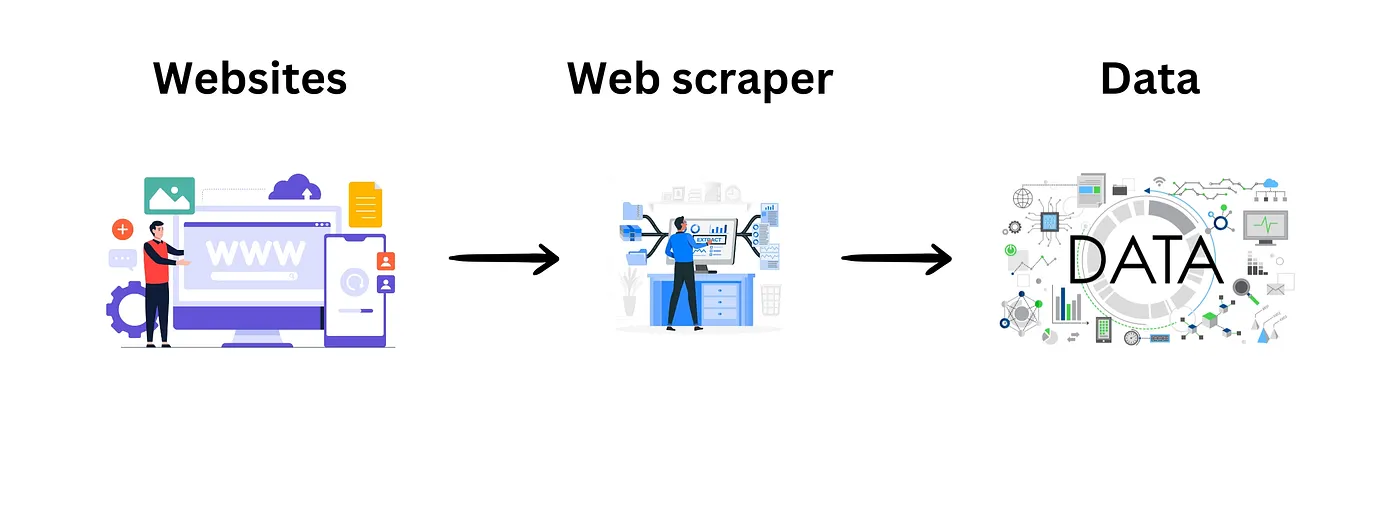
Advanced Web Scraping: Extracting Data from PDFs Without Downloading
Master advanced web scraping by extracting data directly from online PDFs - no downloads, no hassle, just instant insights!

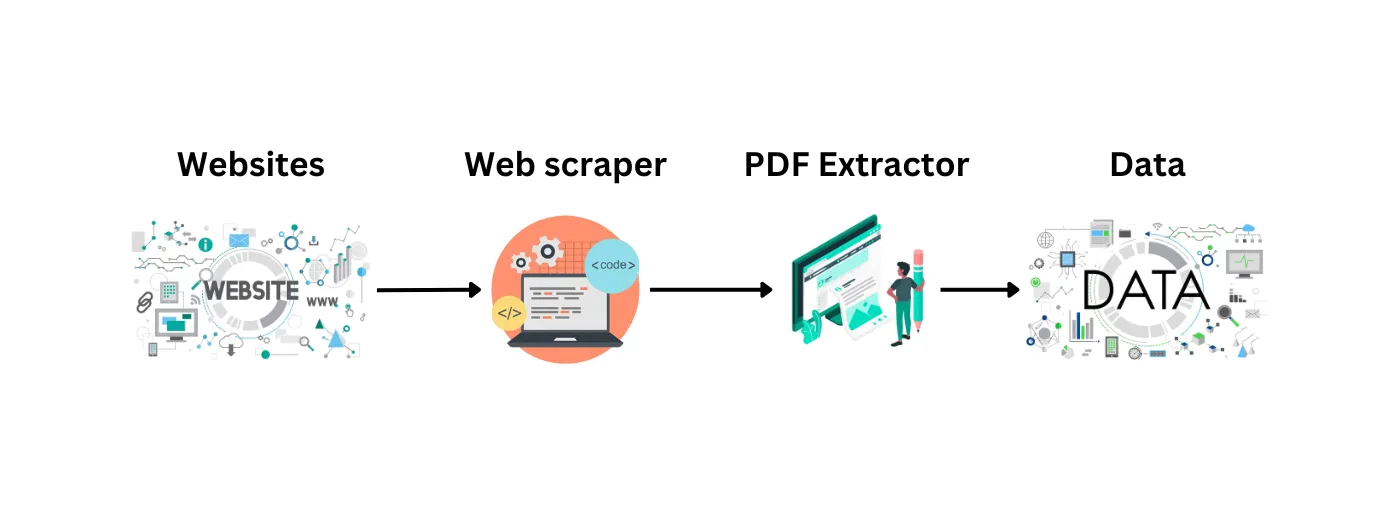
Table of Contents
- Introduction
- Key Components of the Code
- Code Snippet: Extracting Text from PDF URL
- Benefits of This Approach
- Conclusion
1. Introduction
In my previous article, I covered the basics of web scraping with Python. Now, let's explore a more advanced technique: extracting data from PDFs embedded in websites without downloading them. This method is particularly useful when dealing with frequently updated financial reports or other documents regularly published online.
Many websites, especially in the financial sector, publish important data in PDF format. Traditionally, scraping this data would involve downloading each PDF, which can be time-consuming and storage-intensive. Our goal is to extract the necessary information directly from the PDFs without saving them locally.
We'll use a combination of Python libraries to achieve this:
- Selenium: For navigating web pages and handling dynamic content
- BeautifulSoup: For parsing HTML and extracting relevant elements
- Requests: For fetching PDF content from URLs
- pdfplumber: For extracting text from PDF content
2. Key Components of the Code
Let's break down the main parts of our scraping script:
Setting up the WebDriver
We use Selenium's WebDriver to navigate to the target website and interact with its elements.
Locating PDF Links
We use BeautifulSoup to parse the page's HTML and find links to PDF documents.
Extracting PDF Content
Instead of downloading the PDFs, we use the requests library to fetch the PDF content and pdfplumber to extract text from this content in memory.
Data Extraction and Processing
We use regular expressions to extract specific data points from the PDF text.
Data Storage
Finally, we store the extracted data in a pandas DataFrame and save it as a CSV file.
3. Code Snippet: Extracting Text from PDF URL
Importing Required Libraries
import re
import time
from io import BytesIO
from typing import Dict

import requests
import pdfplumber
import pandas as pd
from bs4 import BeautifulSoup
from selenium import webdriver
from selenium.webdriver.chrome.service import Service
from selenium.webdriver.support.ui import WebDriverWait
Setting Up WebDriver
service = Service('/Your_path/webdriver/chromedriver')
driver = webdriver.Chrome(service=Service())
wait = WebDriverWait(driver, 10)
Defining URL and Class Names
search_url = 'https://www.cse.lk/pages/cse-daily/cse-daily.component.html'

report_list_class_name = 'rules-flexible'
report_class_name = 'rules-block flexible'
date_class_name = 'date'
button_class_name = 'dropdown-button'
Define Regular Expression Patterns
all_share_price_index_pattern = r'\((ASPI)\)\s+([\d,]+\.\d+)\s+([\d,]+\.\d+)'
sp_sri_lanka_20_index_pattern = r'(S&P Sri Lanka 20 Index)\s+([\d,]+\.\d+)\s+([\d,]+\.\d+)'
Extracting PDF Text
This function fetches a PDF from a given URL and extracts text from its first page using pdfplumber.
def extract_pdf_text_from_url(pdf_url):
    headers = {
        'User-Agent': 'Mozilla/5.0',
        'Accept': 'application/pdf,application/xhtml+xml,application/xml;q=0.9,*/*;q=0.8'
    }
    response = requests.get(pdf_url, headers=headers)
    response.raise_for_status()

    with pdfplumber.open(BytesIO(response.content)) as pdf:
        if len(pdf.pages) > 0:
            first_page_text = pdf.pages[0].extract_text()
        else:
            first_page_text = "No pages found in PDF."

    return first_page_text
Extracting Data from PDF Text
The extract_pdf_data function enhances web scraping capabilities by extracting specific financial information from PDF reports.
def extract_pdf_data(text: str) -> Dict[str, Dict[str, str]]:
    # Clean the text by removing extra spaces and newlines
    text = ' '.join(text.split())

    # Initialize result dictionary
    extracted_data = {}

    # Extract ASPI values
    aspi_match = re.search(all_share_price_index_pattern, text)
    if aspi_match:
        extracted_data['ASPI'] = {
            'Today': aspi_match.group(2),
            'Previous': aspi_match.group(3)
        }

    # Extract S&P Sri Lanka 20 Index values
    sp_sri_lanka_match = re.search(sp_sri_lanka_20_index_pattern, text)
    if sp_sri_lanka_match:
        extracted_data['S&P Sri Lanka 20 Index'] = {
            'Today': sp_sri_lanka_match.group(2),
            'Previous': sp_sri_lanka_match.group(3)
        }

    return extracted_data
Main Scraping Loop
This loop navigates through the webpage, finds PDF links, opens them in new tabs, extracts data, and stores it in the reports list.
reports = []

while True:
    # Get the HTML content of the page
    content = driver.page_source
    soup = BeautifulSoup(content, 'html.parser')

    # Find the main element containing the list of reports
    shows_element = soup.find('div', attrs={'class': report_list_class_name})
    div_elements = shows_element.findAll('div', attrs={'class': report_class_name})
    print(f"Number of shows found: {len(div_elements)}")

    for div in div_elements:
        date_element = div.find('div', attrs={'class': date_class_name})
        print(date_element.text)
        download_button = div.find('a', attrs={'class': button_class_name})
        href = download_button['href']
        driver.execute_script(f"window.open('{href}', '_blank');")

        time.sleep(10)

        driver.switch_to.window(driver.window_handles[1])
        pdf_url = driver.current_url

        text = extract_pdf_text_from_url(pdf_url)

        result = extract_pdf_data(text)

        # Close the PDF tab and switch back to main tab
        driver.close()
        driver.switch_to.window(driver.window_handles[0])
        data = {
            'date': date_element.text,
            'pdf_url': pdf_url,
            'extracted_data': result
        }
        reports.append(data)

    # Close the main tab
    driver.close()
    break

print(reports)
Saving Data to CSV
Finally, this snippet processes the extracted data, creates a pandas DataFrame, and saves it to a CSV file.
# Prepare data for DataFrame
data_for_df = [
    {
        'Date': entry['date'].strip(),
        'PDF URL': entry['pdf_url'],
        'ASPI Today': entry['extracted_data']['ASPI']['Today'],
        'ASPI Previous': entry['extracted_data']['ASPI']['Previous'],
        'S&P 20 Today': entry['extracted_data']['S&P Sri Lanka 20 Index']['Today'],
        'S&P 20 Previous': entry['extracted_data']['S&P Sri Lanka 20 Index']['Previous'],
    }
    for entry in reports
]

# Create DataFrame
df = pd.DataFrame(data_for_df)

# Define CSV file name
reports_data = "reports_data.csv"

# Save DataFrame to CSV
df.to_csv(reports_data, index=False)
4. Benefits of This Approach
- Efficiency: By avoiding downloads, we save storage space and reduce processing time.
- Real-time Data: We can always access the most up-to-date information without managing local copies of PDFs.
- Scalability: This method is particularly useful when dealing with a large number of PDFs or frequently updated documents.
5. Conclusion
This advanced web scraping technique allows us to efficiently extract data from PDFs embedded in websites without the need for downloads. You can find the complete code on GitHub. It's a powerful tool for data analysts, researchers, and developers working with online financial reports or any frequently updated PDF documents.
Remember to always respect website terms of service and practice ethical web scraping.
Happy coding! 😃
Part of the Scraping tutorial series
View all partsRelated Posts
- 5 min read
Building Your First Collaborative AI Crew
Learn the basics of AI agents, what they are, and how they're changing the way we interact with technology.
AIAI AgentsAutomation - 5 min read
Introduction to CrewAI — What It Is and Why It Matters
Learn the basics of AI agents, what they are, and how they're changing the way we interact with technology.
AIAI AgentsAutomation - 7 min read
Basic Guide to Web Scraping with Python
Learn the fundamentals of web scraping with Python using Selenium and BeautifulSoup.
web scraping with pythonbeginner web scraping guideAutomation